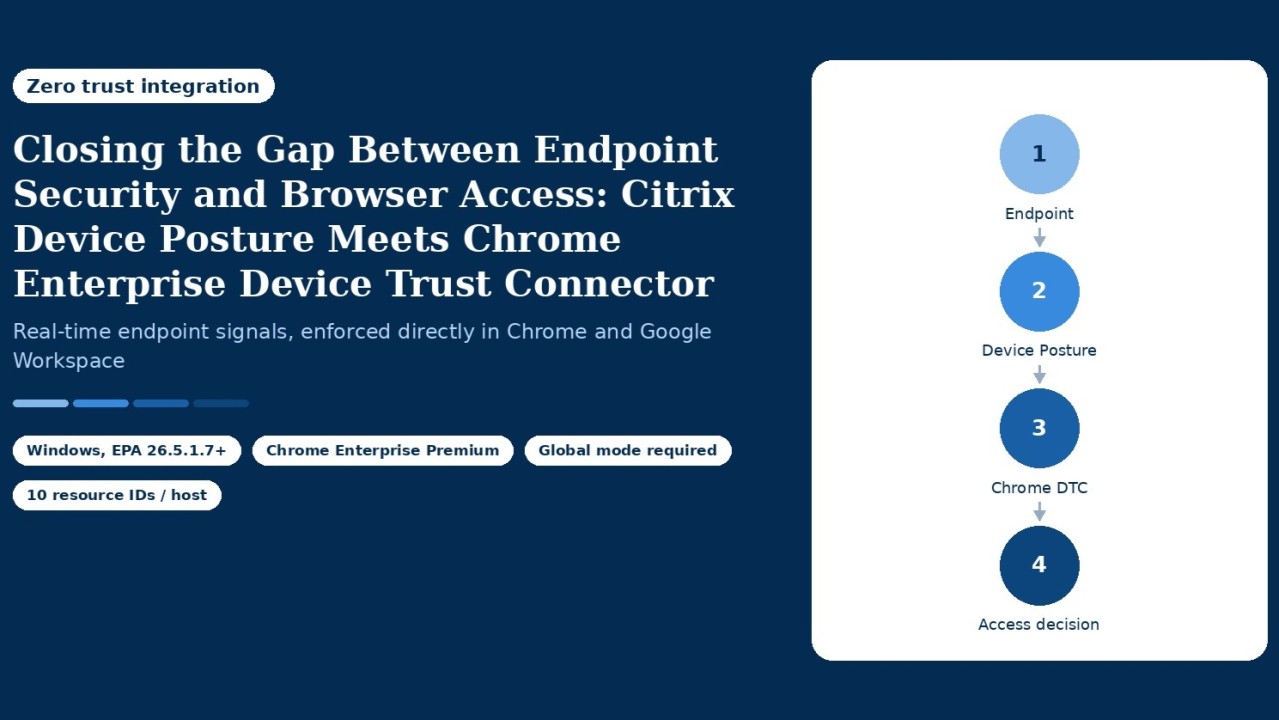
If you’re running a Zero Trust program, you’ve probably hit this wall before: your endpoint posture engine knows exactly how healthy a device is, but the moment a user opens Chrome and hits Google Workspace, that intelligence disappears. The browser makes its own access decision, blind to everything your posture checks just found.
Citrix has closed that gap. The Device Posture service now integrates natively with the Chrome Enterprise Device Trust Connector, letting engineers pipe real-time posture results straight into Google Workspace’s context-aware access and DLP engine. Here’s what that actually means, how it works, and how to configure it for anyone building or auditing a Zero Trust architecture that spans Citrix and Google Chrome.
Why this integration matters
Most organizations already run posture checks- OS version, antivirus status, geolocation, custom compliance rules through Citrix’s Device Posture service. The problem has always been getting those results to act somewhere beyond the Citrix stack. This integration solves exactly that: Chrome can now consume Citrix posture signals to decide, in real time, whether a managed browser or managed Chrome profile gets access to a Google Workspace app or whether a Data Loss Prevention rule should kick in to stop a download, print, or copy action.
In short: one posture evaluation, enforced consistently across Citrix-delivered resources and the Chrome browser itself.
What gets shared, and how
Posture results are surfaced to Chrome as structured signals, published under a dedicated namespace (device.vendors[“Citrix”].data[…]) that Google’s Common Expression Language (CEL) engine can evaluate directly inside access rules. Four keys matter most:
- OVERALL_OUTCOME : the aggregate posture result: Compliant, Non-Compliant, or Deny (case-sensitive)
- OVERALL_OUTCOME_CONTEXT_NAME : which policy or check drove that outcome (e.g., AUTHORIZED_COUNTRY, AV_STATUS, OS_VERSION, or a custom policy name)
- Citrix-DeviceId : the endpoint’s unique identifier in the Device Posture service
- Citrix-TransactionId : the unique ID of the specific scan that generated the signal
The last two aren’t meant to drive policy logic they’re correlation IDs. Their real value shows up during investigations: capture them from a Chrome or Workspace audit log, then search the Citrix Device Posture dashboard to reconstruct exactly which policies fired, what was evaluated, and when.
Turning posture into policy: CEL in action
This is where the integration gets genuinely powerful. Because Citrix signals live inside Google’s CEL-based rule engine, security teams can write access logic as specific or as layered as they need. A few patterns worth knowing:
Fail-closed access : only allow entry when Citrix explicitly confirms a compliant device:
device.vendors["Citrix"].data["OVERALL_OUTCOME"] == "Compliant" Scoped blocking : deny access only when non-compliance stems from a specific cause, like an unauthorized country:
device.vendors["Citrix"].data["OVERALL_OUTCOME"] == "Non-Compliant" &&
device.vendors["Citrix"].data["OVERALL_OUTCOME_CONTEXT_NAME"] == "AUTHORIZED_COUNTRY"
DLP enforcement : block downloads, prints, or copies from Google Drive on a non-compliant endpoint using the same outcome check attached to a DLP trigger.
Tiered policies : combine multiple context names so that, say, antivirus or OS-version failures trigger a hard block while other non-compliance reasons route to a softer rule.
Blended signals : stack Citrix posture with Chrome’s own native attributes (encryption status, OS major version, and so on) for defense-in-depth conditions that neither vendor could express alone.
That last pattern is really the point of the whole integration: Citrix posture intelligence and Google’s native endpoint verification signals aren’t competing ,they’re composable.
What you need before you start
This isn’t a toggle-and-go feature. A few prerequisites have to be in place:
- A Citrix Cloud tenant with Device Posture service entitled and configured and critically, running in global mode, since the integration isn’t supported in any other mode
- A Google Workspace tenant with a Chrome Enterprise Premium (CEP) license and super-admin access to the Google Admin console
- CEP already deployed across the customer environment
- The Context-Aware Access level switched ON in Google Admin
On the platform side, support currently targets Windows endpoints running EPA client 26.5.1.7 or later, deployed via Citrix SecurAccess ZTNA with Citrix Enterprise Premium, or Citrix SecurAccess ZTNA hybrid.
The configuration flow, at a glance
- Prep the foundations : deploy CEP on managed Windows endpoints, and build out Device Posture policies for whatever signals you want to share (OS version, AV state, geo, custom checks).
- Authorize the connector : in Google Admin, go to Devices > Mobile and endpoints > Settings > Third-party integrations, find Citrix, and walk through the authorization handshake. A successful pairing flips the status to “Connected.”
- Write the CEL rules : build context-aware access levels or DLP rules referencing the Citrix signal keys, then assign them to the relevant Workspace apps and organizational units.
- Validate : deliberately fail a posture scan on a test endpoint (wrong country, disabled AV) and confirm Chrome enforces the expected block, warn, or allow behavior. Check the rule log events to confirm the Citrix signals were actually evaluated.
Troubleshooting tips worth bookmarking
A few failure patterns come up often enough to flag:
- Integration stuck on “Not connected” : almost always an incomplete OAuth/admin consent step; re-run the authorization as a super admin.
- Rule never matches : check for a typo in the CEL key name, or confirm the underlying Device Posture policy is actually active.
- Signals missing entirely : verify CEP is installed and the user is actually enrolled with the Device Posture service.
- Unexpected Non-Compliant or Deny results : inspect OVERALL_OUTCOME_CONTEXT_NAME to pinpoint which specific check is failing.
And when something needs deeper investigation, the DeviceId/TransactionId correlation workflow is your friend: pull both values from the Workspace audit log, then look them up directly on the Citrix Device Posture dashboard to see the full scan record which policies ran, which signals were collected, and exactly what got sent to Chrome.
One limit to plan around
Currently, a maximum of 10 Google resource IDs per host can be pushed from Device Posture service to the Chrome Device Trust Connector. Larger environments that need more should reach out to Citrix Support about an extension.
The bigger picture
Zero Trust only works when posture decisions are consistent everywhere a user touches company data, not just inside a Citrix-published app. By feeding real-time device posture directly into Chrome’s context-aware access and DLP engine, this integration lets security teams enforce one coherent compliance story across virtual apps, SaaS access, and browser-level data controls, without asking users to jump through a separate verification hoop for each surface.
If you’re already running Citrix Device Posture and Chrome Enterprise Premium side by side, this is very much worth piloting ,start with a fail-closed rule on one Workspace app, watch the audit logs, and expand from there.